

Chat with AI at the press of a button
Enter, Stop, Up, Down and more: the keys you use most in AI chats, as big buttons. Works with Claude, ChatGPT and Gemini.
iPhone app / with a free Mac app
Lie back on your bed or couch and control a Mac shown on AR glasses or a big screen, right from the iPhone in your hand. Chat with AI and watch videos with a comfy pad and big buttons.
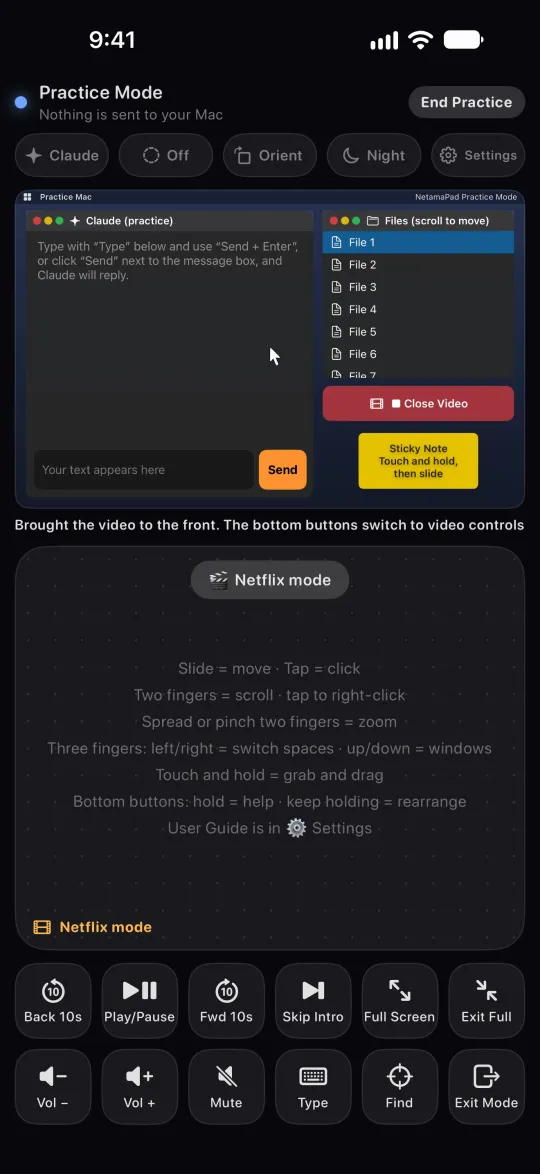
No Mac nearby? Try the controls in the iPhone app's Practice mode. A Windows version is in the works.
Features
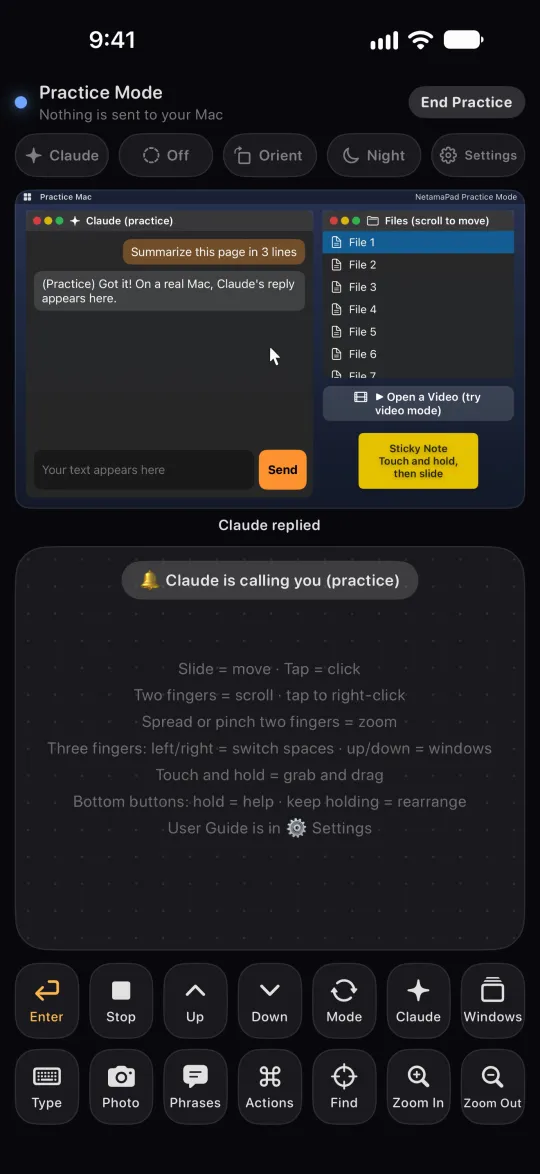
All the trackpad gestures you know, plus big buttons that are easy to press while lying down.
Enter, Stop, Up, Down and more: the keys you use most in AI chats, as big buttons. Works with Claude, ChatGPT and Gemini.
Slide, tap, two-finger scroll and right-click, touch and hold to grab.
Type or dictate, and the text lands where the cursor is on your Mac. Keep using the pad while you type.
Lying on your side? Up is still up. Night mode dims the screen so it's easy on your eyes.
Direct, encrypted Bluetooth. No developer servers, no data collected.
Download
Use the iPhone app together with the app on the computer you connect to.
01 / iPhone
Free to use. Extra features (Pro) are a one-time purchase.
Get it on the App StoreFree, for iPhone02 / Computer
You're on an iPhone. The Mac app goes on your Mac, so open this page on your Mac.
To install: open NetamaPad.dmg, move NetamaPad to your Applications folder, then open it.
We're preparing an app that lets your Windows PC take input from your iPhone. When it's ready, you'll be able to download it right here.
Want to hear when it's ready? Just send a quick note to info@arklio.jp.
Get started
You only do this once. After that, just open the app and it connects automatically.
Get it with “Download for Mac” above and open it. Follow the setup window to turn on the permission to control your Mac (Accessibility).
Install it with [Get it on the App Store] above and open it. A short welcome guide walks you through.
Choose “Add iPhone…” from NetamaPad in your Mac's menu bar, then tap “Connect to Mac” on your iPhone. When both screens show the same 6-digit code, tap “Same” on your iPhone and click “Allow” on your Mac.
Support
Email: info@arklio.jp
NetamaPad is made by ARKLIO, a sole proprietorship in Kumamoto, Japan, so replies may take a few days.
Check that Bluetooth is on for both, and that the NetamaPad icon is in your Mac's menu bar. If they still won't connect, quit NetamaPad on your Mac and open it again. That usually fixes it.
On your Mac, open System Settings → Privacy & Security → Accessibility and make sure NetamaPad is turned on. After turning it on, open NetamaPad on your Mac again.
On any iPhone with the same Apple ID, open Settings → Pro and tap “Restore Purchases”. Family Sharing is supported too.
We're still working on a Windows version. When it's ready, you'll be able to choose it in the Download section of this page.